

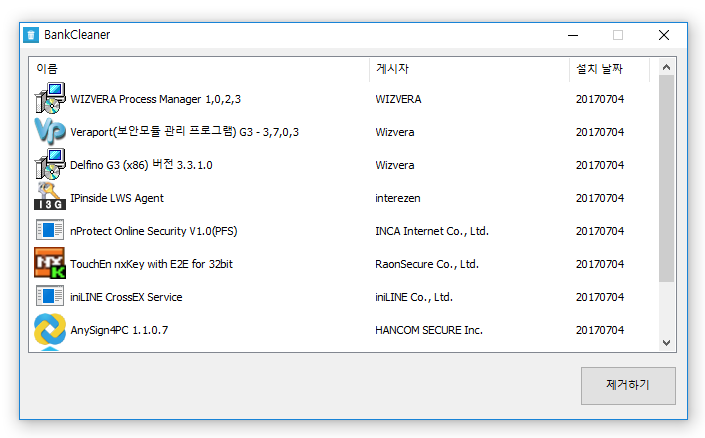
Features
- Easily manage programs that run automatically at startup.
- Manage various items in one place, including the Startup folder, registry, Task Scheduler, and services.
- Safely change settings by disabling items instead of deleting them.
Download file
How to Use
- Run the program.
- Click or drag to select items in the list of installed programs.
- Click the “Remove” button.
License
- Bank Cleaner is freeware.
- You can use it freely anywhere, including at home, at work, in government offices, and at school.
- You may distribute it freely.
Frequently Asked Questions (FAQ)
- Is Bank Cleaner free?
Yes, Bank Cleaner is free to use at home, at work, in government offices, and at school. - Can it remove security programs from all banks?
We have confirmed that it can remove programs installed by major banks, including KB Kookmin Bank, IBK, Woori Bank, and NongHyup. - Is it risky to remove programs?
Bank Cleaner only runs the uninstaller provided by each security program. - Do I need to install it?
No, just download and run it—no installation required.
Examples of Use
- Remove unnecessary security programs left behind after online banking to improve your PC’s performance.
- Safely stop bank-related programs that run automatically when they are not needed, freeing up computer resources.
- Clean up your PC regularly to keep it running smoothly even after online banking.
Handy Tips
- Click or drag to select unwanted items in the program list and remove them all at once.
- Use Bank Cleaner regularly to keep your system clean by removing processes left running after online banking.
- Run it right after banking to remove unwanted programs immediately and help protect your privacy and security.
Ramblings
- I made this to easily remove all the useless programs installed for online banking.
- It’s really unsettling to see them still running in the background even after closing Internet Explorer.
(And I don’t trust the developers’ skills, either.) - Installing them as EXE files instead of using ActiveX… sigh. ㅠ
- Why aren’t we given a choice about installing plugins?
- Tested with KB Kookmin Bank, IBK, Woori Bank, and NongHyup.
- Just download and run it—no installation needed!



좋은 프로그램 감사합니다.
인터넷 뱅킹 때 설치되는 프로그램 하나가 가끔 에러를 발생하여 수동으로 삭제하곤 했는데 이런 프로그램이 많은 도움이 될 것 같습니다.
아쉽게도 위에 나열된 은행 외에는 안 되는가 보네요.ㅠㅠ
하나은행을 사용하고 있는데, “Invalid data type for ‘InstallDate'” 에러가 나네요.
혹시 며칠전에 받으신건지요? ^^
언인스톨 관련 레지스트리에 기본 타입을 제대로 안지키는 프로그램들이 있어서 해당 부분은 수정한 상태입니다.
다시 다운받으셔서 실행하시면 됩니다.
방금 하나은행에서 인증서를 설치하고 정상적으로 삭제하는것을 확인했습니다. ^^
방금 받아서 테스트했는데 동일하네요.
Windows 버전과도 관련이 있을까요?
Windows 7을 사용 중입니다.
재컴파일하고 올렸습니다. 다시 한번 다운받아서 실행해보시겠습니까? ^^
윈도우10(64), 윈도우7(32), 윈도우XP(32) 에서 하나은행 인증서 설치 후 삭제 확인했습니다.
오, 너무 감사합니다.
윈도우 7(64)인데 잘 작동하는 것을 확인했습니다.
실행이 잘 된다니 다행입니다 ^___^
길호갓…. 당신은 대체….
항상 감사합니다.~~
제가 지웠다 깔았다를 반복해서 ㅎㅎㅎ
—————————
Bankcleaner
—————————
Invalid data type for ‘InstallDate’
—————————
확인
—————————
에러가 나네요 ㅠ,ㅠ
수정해서 다시 업로드하였습니다.
몇몇 프로그램들이 레지스트리에 타입을 잘못 저장하네요.
이전에는 SystemComponent 타입이 기본으로 DWord 인데, 스트링으로 저장된게 있어서 그부분은 예외적용했는데, InstallDate 타입은 기본이 스트링인데, DWord 로 저장한 프로그램이 있나봅니다. ㅠㅠ
아무튼 해당부분은 수정했으니 다시 확인 부탁드려요 😉
정상적으로 실행 되네요 ㅎㅎ
리스트가 안뜨기에 봤더니 어제 수동 삭제를 했었네요 ㅎㅎㅎ
감사합니다 ^^
안녕하세요 이건 영구삭제인가요 아니면 프로세스에서 죽이는건가요?
각 플러그인에서 제공하는 언인스톨 프로그램을 실행하는 기능을 합니다.
제어판에서 일일이 찾기 귀찮아서 만든 프로그램입니다. ^^
답변감사합니다 덕분에 잘 쓰고 있습니다
ㅋㅋㅋㅋㅋㅋ 형 쵝오 ! ㅋㅋ 당장 테스트 해봐야지 ㅋ
감사합니다 ^_^ㅋ