
KTimer (2.0.0) has been updated.
更新
- 版本 2.0.0 (2026/09/23)
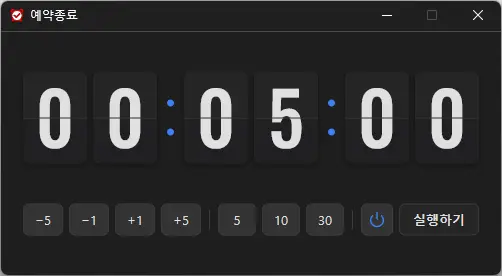
- 新增时尚的翻页时钟设计,查看时间更快捷
- 新增直观按钮,更快更轻松地设置时间
- 改进关机和睡眠选项,使用清晰的视觉图标
- 优化数字样式和配色,适配深色界面
- 改进特定用户环境中的显示效果和可靠性
- 全面更新应用,带来更轻盈流畅的体验
- A scheduled shutdown program for computers.
- Shuts down your computer at a specified time.
- Includes a screenshot feature so you can check what was happening just before shutdown.
- Can be used without installation.
Website
- KTimer: https://ktimer.kilho.net
历史记录
-
版本 2.0.0 (2026/09/23)
- 新增时尚的翻页时钟设计,查看时间更快捷
- 新增直观按钮,更快更轻松地设置时间
- 改进关机和睡眠选项,使用清晰的视觉图标
- 优化数字样式和配色,适配深色界面
- 改进特定用户环境中的显示效果和可靠性
- 全面更新应用,带来更轻盈流畅的体验
-
版本 1.3.2 (2026/08/21)
- 根据休眠支持情况优化菜单选项和行为
- 优化睡眠模式切换,并在切换失败时添加通知
- 修复某些安全软件可能导致的自动启动设置问题
- 重新整理内部设置,提升稳定性
- 优化更新检查
-
版本 1.3.1 (2024/11/16)
- 新增意大利语、法语、俄语和中文支持
-
版本 1.3.0 (2024/11/03)
- 改进更新通知模块。
- 修复多语言模块
- 新增对休眠模式的支持
- 新增防止重复执行的功能
-
版本 1.2.0 (2023/08/17)
- 多语言支持
- 修复更新检查模块
Related Links
- Update announcement: https://kilho.top/archives/notice/2940
License
- KTimer is freeware.
- You can use it freely in any setting, including companies, homes, government offices, and schools.
- You may distribute it freely anywhere.
下载文件
Frequently Asked Questions (FAQ)
- Is the automatic shutdown program free?
Yes, you can use this program for free anywhere, including companies, homes, government offices, and schools. - Does the program need to be installed?
No, you can run it right away without installing it. - Why is the screen captured before shutdown?
A screenshot is taken just before shutdown so you can easily check what was happening at the time when you next boot your computer. - Can I cancel a scheduled shutdown after setting it?
Yes, you can cancel or change the scheduled shutdown.
Examples of Use
- You can set your PC to shut down automatically when a download or backup is expected to finish.
- You can have your PC turn off automatically when you step away or before going to bed, saving power.
- After an automatic shutdown, you can refer to the screen showing what you were working on the previous day and resume work efficiently.
Helpful Tips
- Set a shutdown time in advance to reduce power consumption and extend your hardware’s lifespan.
- Use the screenshot automatically taken just before shutdown to quickly check important work and pick up where you left off after your next boot.
- If you often leave your PC running while away, scheduling a shutdown can help improve security.