
There is a new post. Click here to view the latest post.
KTimer (1.3.2) has been updated.
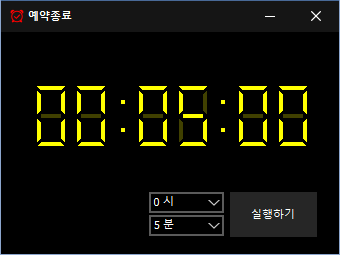
- A scheduled computer shutdown program.
- Shuts down your computer at a specified time.
- Includes a screenshot feature so you can check what was happening just before shutdown.
- Usable without installation.
Website
- KTimer: https://ktimer.kilho.net
History
-
Version 1.3.2 (2026/08/21)
- Menüoptionen und Verhalten basierend auf der Unterstützung des Ruhezustands verbessert
- Das Umschalten in den Ruhezustand verbessert und eine Benachrichtigung hinzugefügt, wenn das Umschalten fehlschlägt
- Ein Problem bei der Einrichtung des automatischen Starts behoben, das bei bestimmter Sicherheitssoftware auftreten konnte
- Stabilität durch Neustrukturierung der internen Einstellungen verbessert
- Updateprüfung verbessert
-
Version 1.3.1 (2024/11/16)
- Unterstützung für die italienische, französische, russische und chinesische Sprache hinzugefügt
-
Version 1.3.0 (2024/11/03)
- Modul für Update-Benachrichtigungen verbessert.
- Mehrsprachiges Modul korrigiert.
- Unterstützung für den Ruhezustand hinzugefügt.
- Möglichkeit hinzugefügt, doppelte Ausführungen zu verhindern.
-
Version 1.2.0 (2023/08/17)
- Mehrsprachige Unterstützung
- Modul zur Update-Prüfung korrigiert.
-
Version 1.0.0 (2022/09/07)
- Erstveröffentlichung
Related Links
- Update notice: https://kilho.top/archives/notice/2940
License
- KTimer is freeware.
- You can use it freely in any setting, including offices, homes, government offices, and schools.
- You are free to distribute it anywhere.
Datei herunterladen
Frequently Asked Questions (FAQ)
- Is this automatic shutdown program free?
Yes, you can use this program for free anywhere, including offices, homes, government offices, and schools. - Does the program need to be installed?
No, you can run it right away without installing it. - Why is the screen captured before shutdown?
A screenshot of the screen just before shutdown is taken so you can easily check what was happening when the computer shut down the next time you boot it. - Can I cancel a scheduled shutdown after setting it?
Yes, you can cancel or change a scheduled shutdown.
Examples of Use
- You can estimate when a download or backup will finish and have your PC shut down automatically.
- You can have your PC shut down automatically when stepping away or before bed, saving power.
- After an automatic shutdown, you can refer to the work screen from the time of shutdown the next day and resume your work efficiently.
Tips
- Set a shutdown time in advance to reduce power consumption and extend your hardware’s lifespan.
- For important tasks, use the screenshot captured automatically just before shutdown to quickly check what you were doing and pick up where you left off at the next boot.
- In places where you often leave your PC running unattended, scheduling a shutdown can help improve security.