
There is a new post. Click here to view the latest post.
KTimer (1.3.2) has been updated.
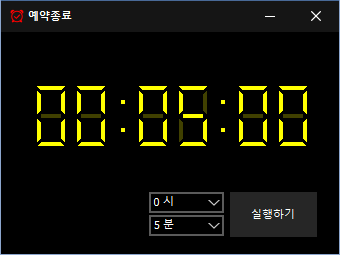
- A scheduled computer shutdown program.
- Shuts down your computer at a specified time.
- Includes a screenshot feature so you can check what was happening just before shutdown.
- Usable without installation.
Website
- KTimer: https://ktimer.kilho.net
History
-
Версия 1.3.2 (2026/08/21)
- Улучшены пункты меню и поведение с учётом поддержки гибернации
- Улучшено переключение в спящий режим и добавлено уведомление о сбое переключения
- Исправлена проблема с настройкой автозапуска, которая могла возникать при использовании определённого ПО для защиты
- Повышена стабильность благодаря реорганизации внутренних настроек
- Улучшена проверка обновлений
-
Версия 1.3.1 (2024/11/16)
- Добавлена поддержка итальянского, французского, русского и китайского языков
-
Версия 1.3.0 (2024/11/03)
- Улучшен модуль уведомлений об обновлениях.
- Исправлена работа многоязычного модуля.
- Добавлена поддержка режима гибернации.
- Добавлена возможность предотвращать повторные запуски.
-
Версия 1.2.0 (2023/08/17)
- Поддержка нескольких языков
- Исправлен модуль проверки обновлений.
-
Версия 1.0.0 (2022/09/07)
- Первый выпуск
Related Links
- Update notice: https://kilho.top/archives/notice/2940
License
- KTimer is freeware.
- You can use it freely in any setting, including offices, homes, government offices, and schools.
- You are free to distribute it anywhere.
Скачать файл
Frequently Asked Questions (FAQ)
- Is this automatic shutdown program free?
Yes, you can use this program for free anywhere, including offices, homes, government offices, and schools. - Does the program need to be installed?
No, you can run it right away without installing it. - Why is the screen captured before shutdown?
A screenshot of the screen just before shutdown is taken so you can easily check what was happening when the computer shut down the next time you boot it. - Can I cancel a scheduled shutdown after setting it?
Yes, you can cancel or change a scheduled shutdown.
Examples of Use
- You can estimate when a download or backup will finish and have your PC shut down automatically.
- You can have your PC shut down automatically when stepping away or before bed, saving power.
- After an automatic shutdown, you can refer to the work screen from the time of shutdown the next day and resume your work efficiently.
Tips
- Set a shutdown time in advance to reduce power consumption and extend your hardware’s lifespan.
- For important tasks, use the screenshot captured automatically just before shutdown to quickly check what you were doing and pick up where you left off at the next boot.
- In places where you often leave your PC running unattended, scheduling a shutdown can help improve security.