


SecretDNS can automatically configure DNS when it exits, without requiring you to enter DNS settings in Preferences. However, it may not configure DNS automatically in some environments, so here’s how to set it up manually.
If you have an internet connection, you can easily change the settings using the link below.
https://gnu.kilho.net/bbs/board.php?bo_table=tiptech&wr_id=1202
Manual setup
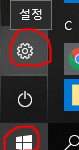
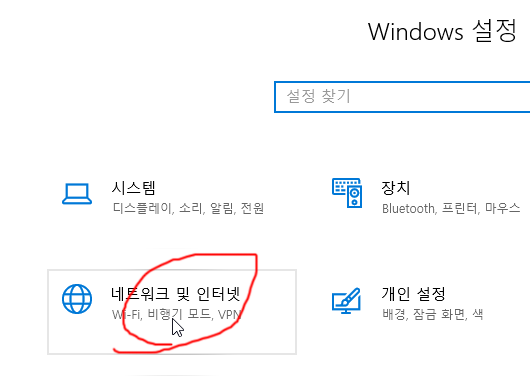
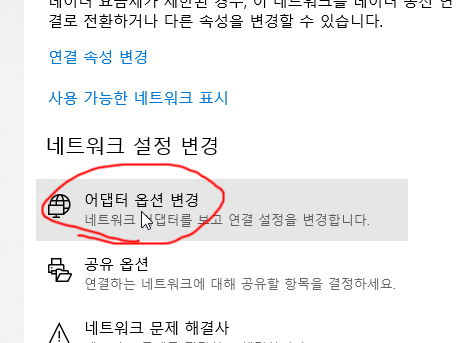
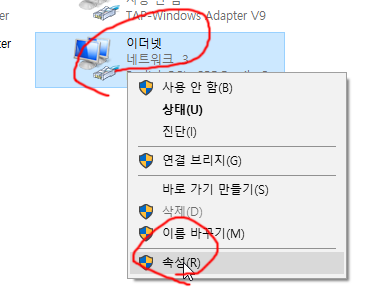
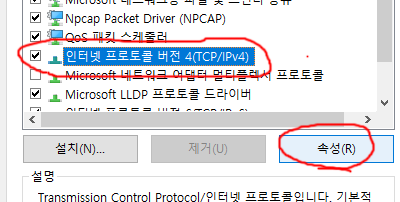
5. Click Internet Protocol Version 4 (TCP/IPv4), then click Properties.
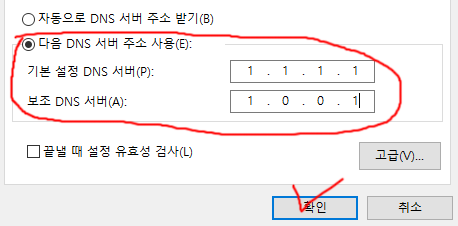
6. Select Use the following DNS server addresses, enter your preferred DNS addresses, then click OK.
Here are the IP addresses of some popular DNS servers.
- KT: 168.126.63.1 / 168.126.63.2
- SK: 210.220.163.82 / 219.250.36.130
- LG: 164.124.107.9 / 203.248.242.2
- Google: 8.8.8.8 / 8.8.4.4
- Cloudflare: 1.1.1.1 / 1.0.0.1



덕분에 해결했습니다. 네이버는 되는데, 크롬을 다운받았더니 안되서 당황했거든요. 감사합니다.