
Update
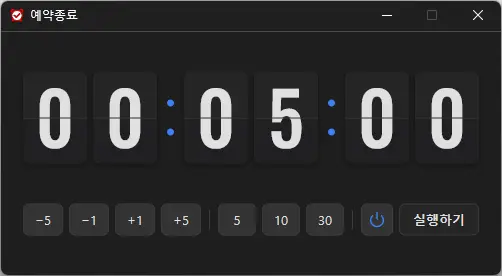
- Introduced a stylish flip clock design for faster time checking
- Added intuitive buttons for quicker and easier time setup
- Improved shutdown and sleep selection with clear visual icons
- Applied sharper number styling and colors optimized for the dark interface
- Improved display behavior and reliability in certain user environments
- Refreshed the entire app for a lighter and smoother experience
- A scheduled shutdown program for computers.
- Shuts down your computer at a specified time.
- Includes a screenshot feature so you can check what was happening just before shutdown.
- Can be used without installation.
Website
- KTimer: https://ktimer.kilho.net
History
-
Version 1.3.2 (2026/08/21)
- Improved menu options and behavior based on hibernation support
- Improved sleep mode switching and added a notification when switching fails
- Fixed an auto-start setup issue that could occur with certain security software
- Improved stability by reorganizing internal settings
- Improved update checking
-
Version 1.3.1 (2024/11/16)
- Added support for Italian, French, Russian, and Chinese languages
-
Version 1.3.0 (2024/11/03)
- Improved update notification module.
- Fixed multilingual module.
- Added support for Hibernation Mode.
- Added ability to prevent duplicate executions.
-
Version 1.2.0 (2023/08/17)
- Multilingual Support
- Fixed update check module.
Related Links
- Update announcement: https://kilho.top/archives/notice/2940
License
- KTimer is freeware.
- You can use it freely in any setting, including companies, homes, government offices, and schools.
- You may distribute it freely anywhere.
Download
Frequently Asked Questions (FAQ)
- Is the automatic shutdown program free?
Yes, you can use this program for free anywhere, including companies, homes, government offices, and schools. - Does the program need to be installed?
No, you can run it right away without installing it. - Why is the screen captured before shutdown?
A screenshot is taken just before shutdown so you can easily check what was happening at the time when you next boot your computer. - Can I cancel a scheduled shutdown after setting it?
Yes, you can cancel or change the scheduled shutdown.
Examples of Use
- You can set your PC to shut down automatically when a download or backup is expected to finish.
- You can have your PC turn off automatically when you step away or before going to bed, saving power.
- After an automatic shutdown, you can refer to the screen showing what you were working on the previous day and resume work efficiently.
Helpful Tips
- Set a shutdown time in advance to reduce power consumption and extend your hardware’s lifespan.
- Use the screenshot automatically taken just before shutdown to quickly check important work and pick up where you left off after your next boot.
- If you often leave your PC running while away, scheduling a shutdown can help improve security.